Installing a Progressive Web App (PWA) on iOS using Chrome
A step-by-step guide to adding PWAs to your home screen
What is a Progressive Web App (PWA)?
- A PWA is a web application that offers an app-like experience.
- PWAs can work offline, send notifications, and load quickly.
- They can be added to your home screen for easy access.
What You Need
- An iPhone or iPad
- Chrome browser installed on your device
Step 1: Open Chrome on Your iOS Device
- Locate and open the Chrome browser on your iPhone or iPad.
- Ensure you are connected to the internet.
Step 2: Navigate to the Website
- Type the “https://aria.org.in/” URL of the website you want to add as a PWA.
- Wait for the website to fully load.

Step 3: Open the Share Menu
- Tap the Share button located on the right side of the address bar.

- This will open the sharing options menu.
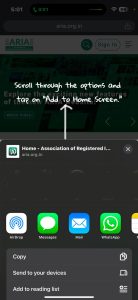
Step 4: Add to Home Screen
- Scroll through the options and tap on “Add to Home Screen.”
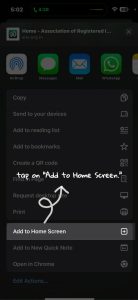
- A preview window will appear.
Step 5: Confirm and Add
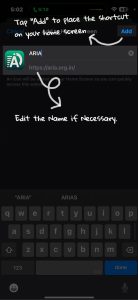
- Edit the name if necessary.
- Tap “Add” to place the shortcut on your home screen.
Accessing Your PWA
- Tap the icon on your home screen to open the PWA.
- The ARIA website it will open like an app.